
Installing Widget Packages
Materia widgets are distributed in the form of a .wigt file. These files contain all the code, assets, and data needed to install a widget. To learn more about how widgets are built, check out the Widget Developer Guide.
Finding Widgets to Install
Widgets are maintained serpately from Materia itself, each having its own, independent development cycle. We have a Materia Widget Gallery that searches github for all publicly shared widgets.
Note: The Widget Gallery will include widgets made by the core Materia development team and 3rd parties.
Installing Default Widgets
For first-time setup, particularly in development environments, you can use a python management command to quickly install a set of default widgets:
$ python manage.py post-install install_from_config
Installing Widgets from the Admin Panel
Materia’s admin panel allows administrators to upload new widgets. Log in as an administrator, and navigate to the Admin Widget Page (https://your-materia-institution.edu/admin/widget/). Uploading a widget is as easy as clicking upload and selecting the .wigt file from your computer.
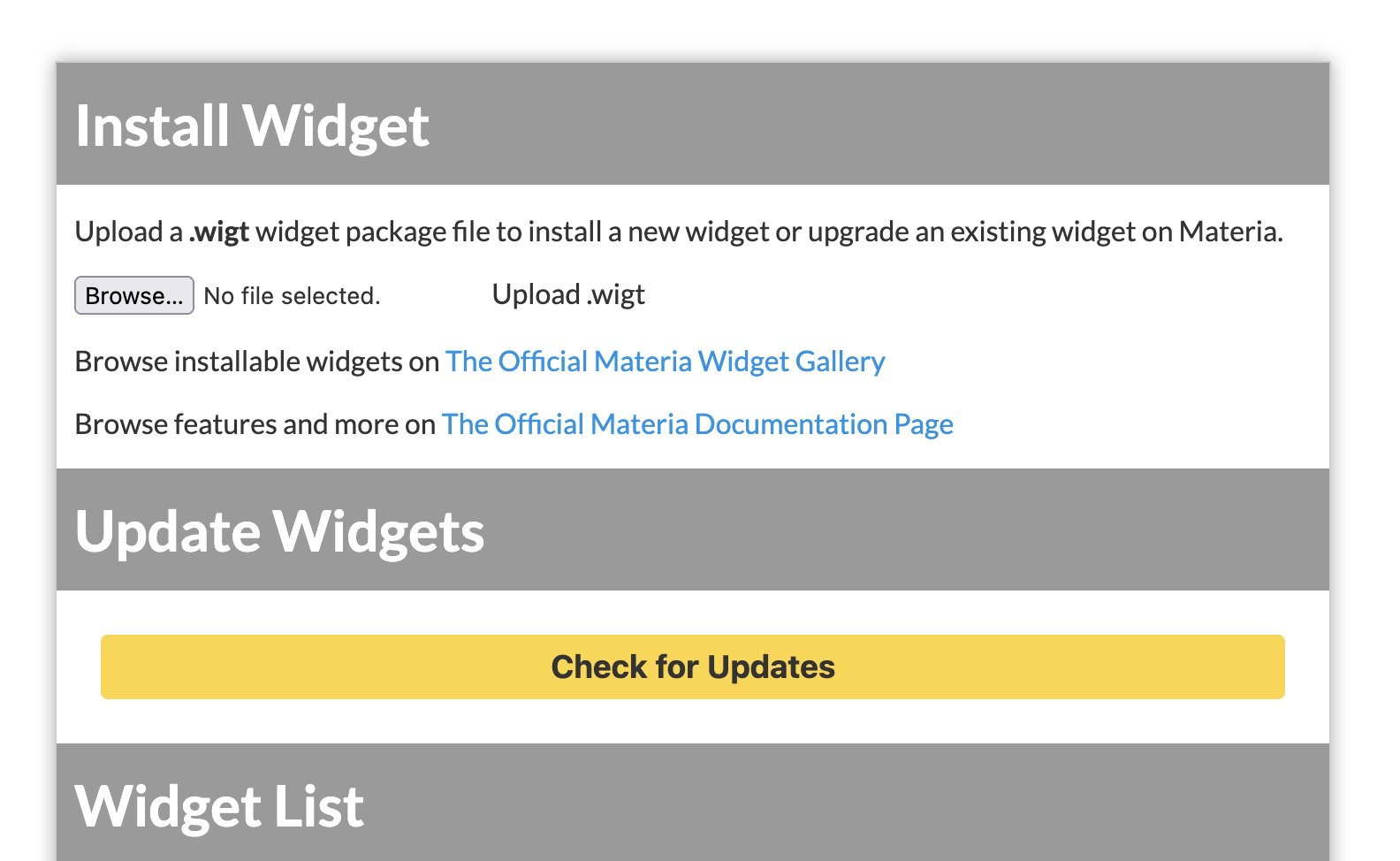
Upgrading a widget is as easy as installing a new one for the first time. A widget’s
clean_nameis used to identify whether the widget has been previously installed.
Installing Widgets from the Command Line
Widget installation can be performed via the command line through Django’s management commands. Doing so requires shell access to the python container.
python manage.py widget install_from_file path/to/widget.wigt
Alternatively, widgets can be installed directly from a URL through management commands:
python manage.py widget install_from_url_no_verify https://widget-repository-url/widget.wigt
Automatic Widget Updates
With Materia v11, open source first-party widgets hosted on GitHub contain the metadata to enable automatic updates. Once a widget is installed or updated to include this metadata, you can easily check for updates by selecting the “Check for Updates” button. If an update is available, simply select “Update” to install the new version.
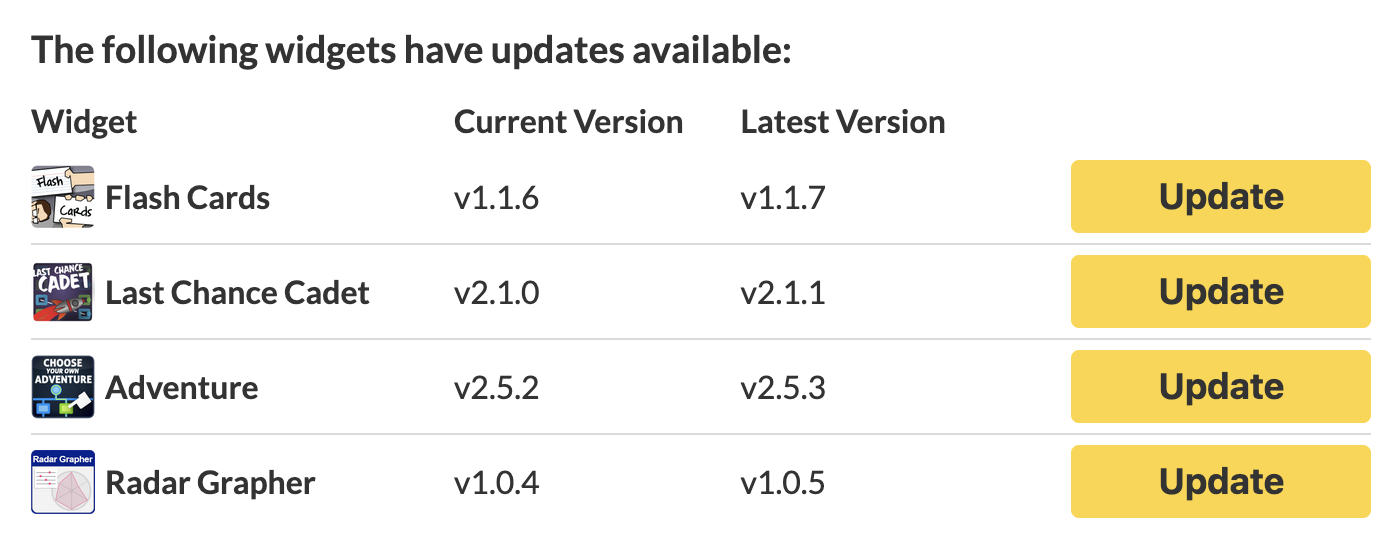
This feature is limited to widgets in public repositories. Not all first-party widgets authored by UCF are publicly available.