
Embed a Widget in Canvas
Embedding a Materia widget offers two advantages to using them standalone:
- User authentication is handled automatically, behind the scenes. Students will never see a login prompt to interact with your Materia content.
- If embedded in a context that is associated with a gradebook, such as an assignment, Materia will send the score to the gradebook for that activity. Visit the Widget Gradebook Submissions page for a deeper dive into how Materia syncs scores with the gradebook.
Use the External Tool selection in Canvas to select and embed a widget. Here are two examples:
Embedding Widgets in Assignments
First, create a new assignment and populate the assignment name field. Under Submission Type, select External Tool from the drop-down.
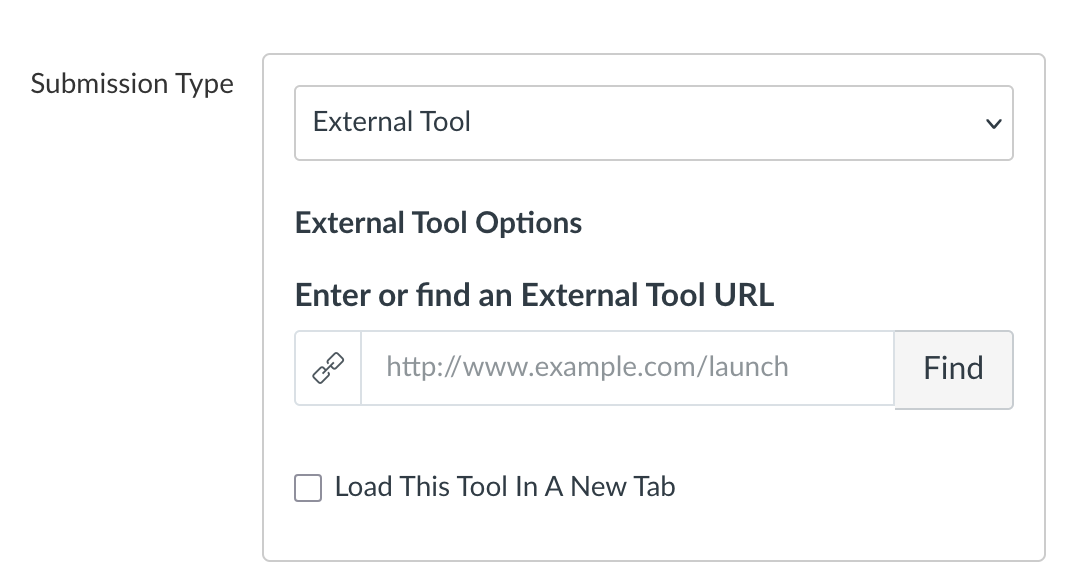
From here, select the Find button to the right of the empty input box. Scroll through the list of available external tools to find Materia Widget.
Materia will load a list of your widgets that are available for selection. Note that draft widgets and widgets that are set to Guest Mode are not eligible for Canvas embeds. If no widgets are available, or if you’d like to create a new widget first, simply select “Create a new widget in Materia” to be sent to the Materia widget catalog in a new tab. When you return to the assignment creation page, you will be prompted to refresh the list of widgets.
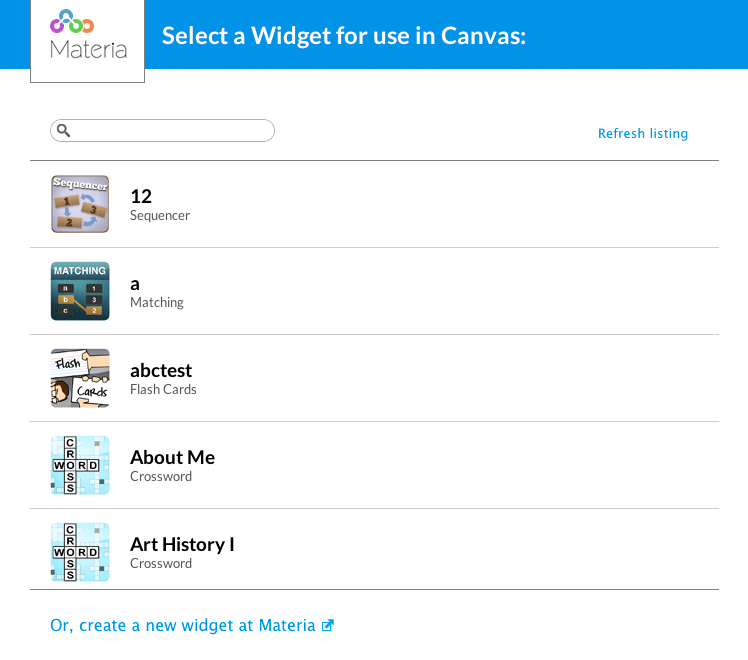
Once a widget has been selected, Materia will perform a “handshake” with Canvas to finalize the configuration. When the widget selection dialog closes, simply hit Select to finalize the widget selection process.
You’ll know the selection was successful when the previously empty input box under Submission Type is now populated with a Materia URL.
From here, everything else is configured on the Canvas side:
- Assignment Points: Materia only ever sends a score percentage between 0 and 100 back to Canvas. The point value is determined by the assignment in Canvas.
- Load this tool in a new tab: this is entirely based on your preference. Some widgets may be constrained if they are asked to render within the Canvas page; generally speaking, we recommend keeping this value checked, to ensure the widget can make best use of the device’s viewport dimensions.
- Submission Attempts: Note that any limits applied to the assignment in Canvas are completely independent from attempt limits applied directly to the widget in Materia. If you set an attempt limit in Materia that’s higher than the one for the assignment, students may choose to play the widget beyond Canvas’s configured attempt limit, but score submissions above this limit will not be accepted by the gradebook. Conversely, setting an attempt limit in Materia lower than the one in Canvas will prevent students from playing and completing a widget up to the limit applied to the assignment. Take care of how you configure attempt limits, and if you decide to set them in both systems, we recommend they be in alignment.
- Assignment Access: the rules for availability windows are the same as the rules for submission limits: the window configured for the assignment is distinct from the window set directly for the widget. Take care when setting these; we recommend you only set the availability window in Materia, as students will be unable to interact with the content even if the assignment itself remains open.
Embedding Widgets as Module Items
Widgets can be embedded as module items directly instead of assignments. Note that because module items do not have associated gradebook entries, these activities will not perform a gradebook passback.
Select the ”+” icon on the right side of a given module and select “External Tool” from the drop-down:
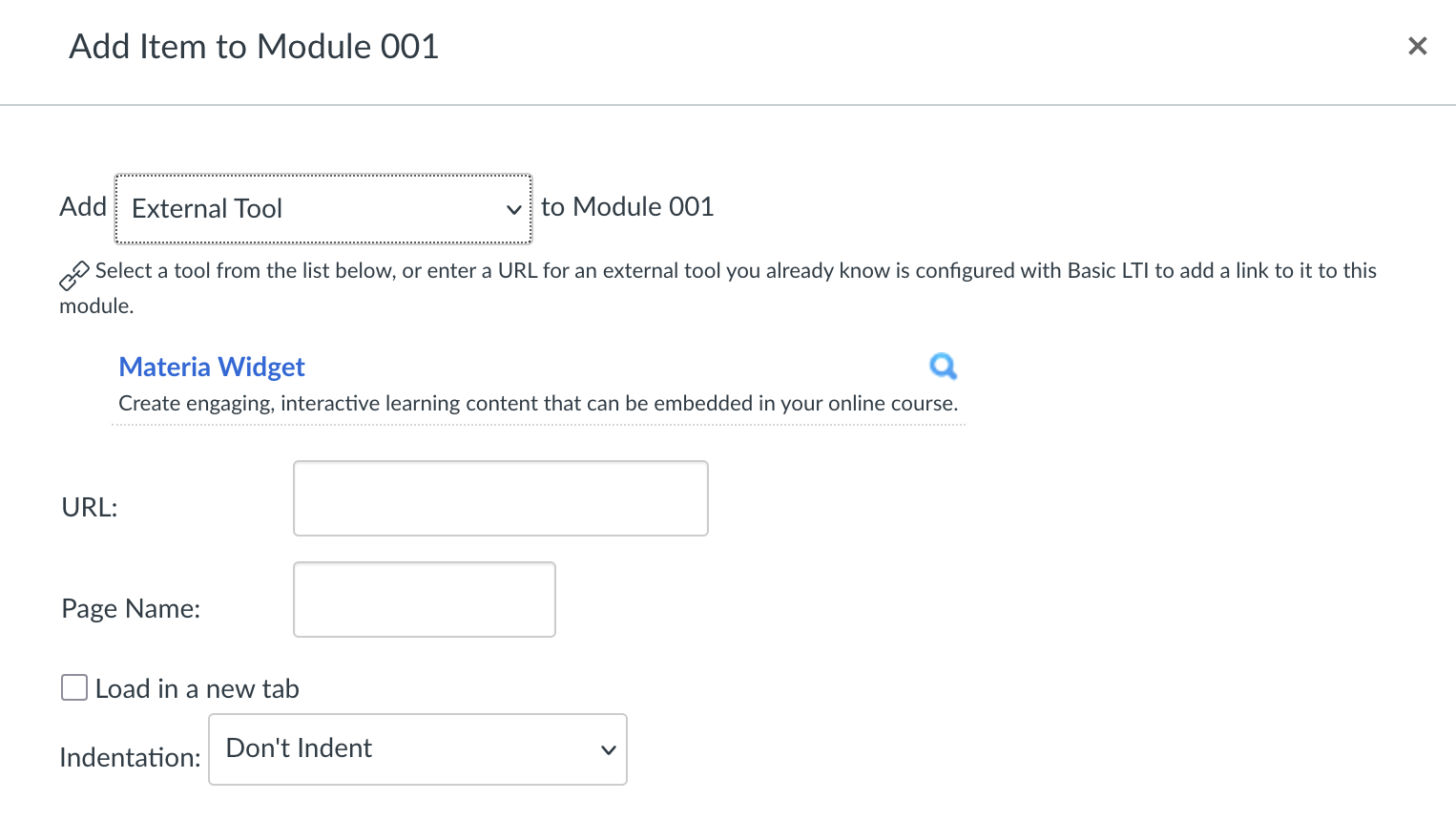
In the list underneath, select Materia widget. The remainder of the process is identical to the widget selection process when embedding a widget in an assignment.