
Managing Widget Access
Widget access is primarily managed from the collaboration window in My Widgets:
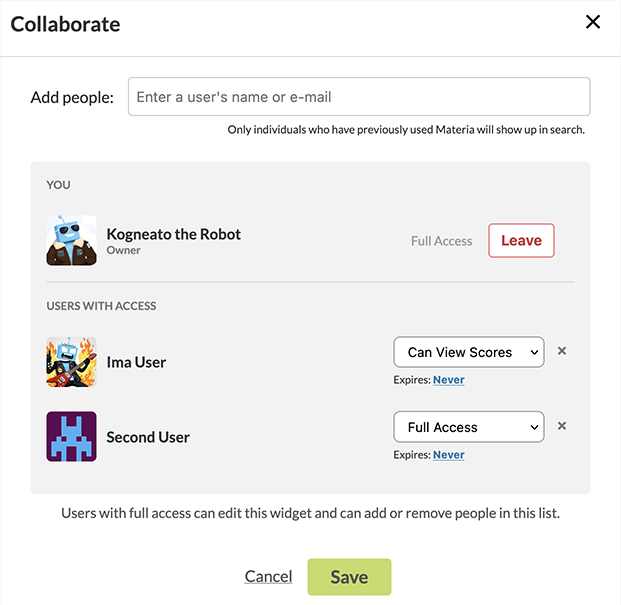
This dialog allows you to manage both your access as well as the access of other users.
There are two tiers of access to widgets:
- View Scores: this is effectively read-only access, which allows the user to view score data the widget has collected but they cannot make edits to the widget.
- Full: this makes the user a co-owner of the widget. They have all the same rights you do: they can review score data and edit the widget if desired.
The top section of the dialog will indicate your access level and gives you the ability to revoke your own access to the widget, if desired. Note that there must always be at least one user with Full access to a given widget; the Leave button will be disabled if this condition would not be met if you remove your access.
If you just want to get rid of a widget in My Widgets, you can always delete it.
The lower section details other users’ access to the widget. If you have Full access, you will have additional options to administrate access levels of other users, including their permission level and the expiration date of their access. You can also remove their access completely, if desired.
Note that any user with Full access can modify the access of any other user with Full access. You are effectively shared owners of the widget.
Adding New Users
You can add additional collaborators by entering their name or email into the search box at the top. The user must have previously interacted with Materia in order to be available in this drop-down: this is because Materia maintains its own internal user records independent of your LMS or other institutional identity databases.
Widget Access in Courses
Widgets embedded in your LMS will sync scores with the gradebook (if there is an associated gradebook column for the context they are embedded in) regardless of who owns them. If you own or inherit a course that contains embedded widgets owned by other users, don’t worry! They’ll continue to work just fine. However, if you visit one of these widgets with an author or instructor role in the course, Materia will grant you provisional access to it. Let’s go over what that means.
Provisional Access to Widgets
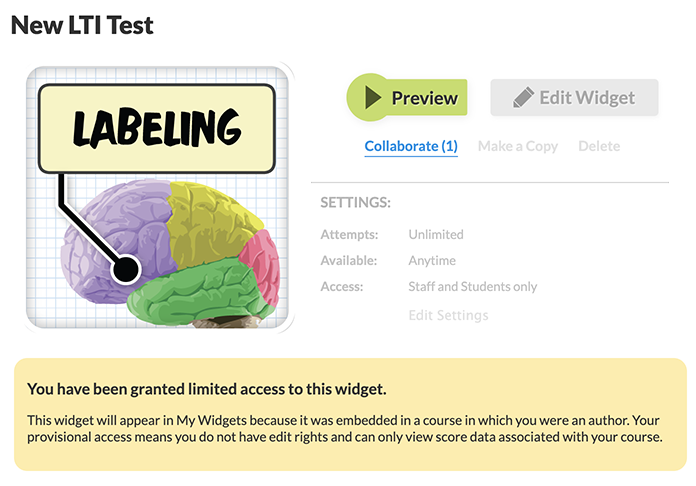
Provisional access is granted automatically to you when you visit a widget that you don’t own in a course that you do. It’s effectively a limited version of View Scores access:
- The widget will appear in My Widgets but you cannot edit or modify it.
- You can view scores the widget has collected for the context the provisional access was granted from. This usually maps to a specific course ID, or a course for a specific section and a specific semester.
Users with provisional access will appear in the collaboration dialog for a given widget with a message indicating the special access status:
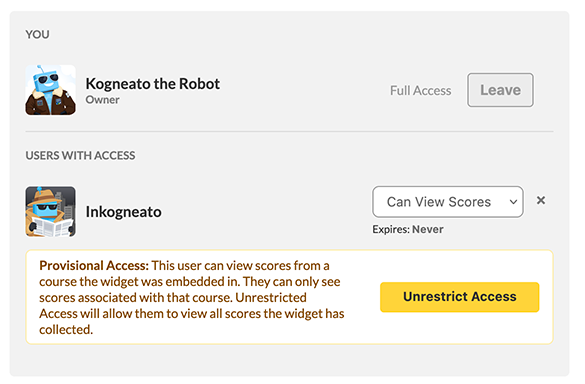
Select Unrestrict Access to remove the provisional access limitation and grant the user the normal View Scores permission level. From this point, their permissions can be modified like any other user.