
What is the Community Library?
The Community Library makes it easy to browse widgets customized by other members of the Materia community at your institution. Upload your own widgets with just a few clicks to contribute to a growing repository of ready-to-play activities. Widgets you copy from the library can be further customized to suit your needs.
Browsing, Searching, and Copying Widgets
The landing page of the Community Library features a selection of widgets across a range of disciplines: by default, these include:
- Arts & Humanities
- Business
- Education
- Engineering & Computer Science
- Health, Medicine, and Nursing
- Hospitality & Tourism
- Public Affairs & Law
- Sciences
- Social Sciences
Select and combine filters on the left to refine your search. You can filter by level of study: Introductory, Intermediate, and Advanced, as well as widget engine, such as Crossword, Adventure, Labeling, and so on.
The search bar across the top allows you to refine your selection based on the widget title, author, or tags. We go into tags in more detail below.
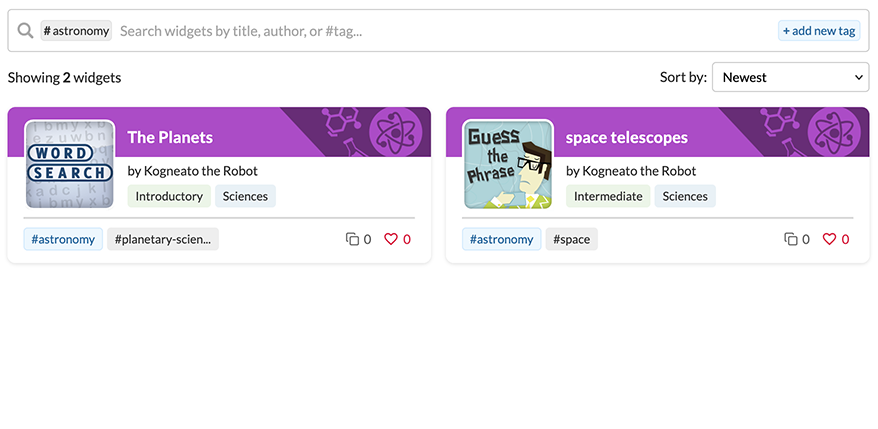
Widget Categorization and Tagging
Widgets must be categorized by discpline and level of study when they are published to the Community Library. Disciplines are intentionally high-level, but you can apply (and search for) tags to provide additional specificity. For example, a widget about the anatomy of a cell may include tags such as #biology or #cells.
In the search bar, you can type the pound (or hashtag) symbol (#) to search by tags. A drop-down will provide closest matches for tags as you search.
Viewing Widgets in the Community Library
Select a widget card from the Community Library page or search results to view more information about it.
Copy to My Widgets
This action makes a copy of the widget for your own account that will be available in My Widgets alongside any other widgets you’ve authored or copied. Learn more about widgets copied from the Community Library below.
Preview Widget
Take a widget for a test drive by selecting this option.
Recommend a Widget
Select this option to “recommend” the widget to other members of the community. Recommendations signify that you and others consider it to be high quality. You can recommend as many widgets as you want, but you can only recommend a widget once.
Managing Widgets Copied from the Community Library
Widgets sourced from the Community Library are functionally identical to other widgets in My Widgets, whether they’ve been authored by you, shared with you, or copied from the Library. You can edit them as much as desired, and these edits are unique to your copy of the widget: the Community Library listing nor the original author’s widget will be affected.
Two important considerations apply to widgets sourced from the Community Library:
- You cannot publish a Community Library-derived widget back to the Community Library.
- If the original author updates the original widget and the Community Library listing, an option will be available to sync the updated changes to your own copy. Keep in mind that this may be destructive if you have made your own changes to your copy, as those changes will be overwritten by the version synced from the Community Library. Note that this update option is entirely optional: you do not need to sync your copy with the version published to the Community Library.
Sharing Your Widgets
By sharing your best widgets to the Community Library, you’re contributing to a resource that may be of immense benefit to current and future members of your institution. It only takes a few clicks!
Select any widget you’ve authored or have Full collaborator access to, and select Share to Library to get started.
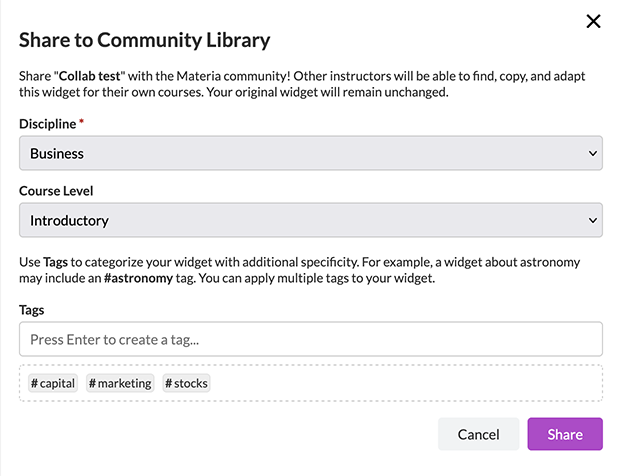
Choose a discipline and level of study for your widget. Don’t worry about disciplines being too generalized: tags are the primary means to provide additional specificity.
Enter as many tags as you deem appropriate. As you enter characters into the tag input box, the system will attempt to match your input with existing tags. You can select an existing tag from the drop-down, or commit your new tag. Remember that tags are intended for categorization and searchability within the Community Library, and should not include things like:
- Course names or codes.
- Personal information including your name.
- Terms unrelated to the content.
Adding inappropriate tags may be grounds for banning your widget or your entire account from the Community Library.
Managing Your Published Widgets
When you share your widget to the Community Library, you’re effectively providing a “snapshot” of the widget’s contents at the time it was shared. If you make further updates to your personal copy, these updates will not be reflected in the Community Library listing automatically. To do so, select Update in the Community Library section of the selected widget in My Widgets.
If you so choose, you can delist your widget from the Community Library by selecting Unpublish. Derivative copies created by other users will not be affected by this action. You can always choose to republish it in the future.